
Landed and your travel eSIM has no internet? An in-order checklist for the arrivals hall
Contents:
The plane is at the gate, everyone around you is already texting, and your phone shows full bars but nothing loads. In most cases the travel eSIM is fine. A switch is in the wrong position, or the phone is still looking at the wrong network.
This guide is about the minutes after landing, not about buying. If you are still checking whether your phone can take an eSIM at all, start with our compatibility and carrier lock guide.
Below is a fixed order of checks. Each one takes a minute or two, the cheapest come first, and none of them can damage the eSIM. The one step that can is listed separately, with a warning.
👉 Example plan used throughout: Torrum packages for Spain.
First, read what the status bar is telling you
The top of the screen already narrows the fault down. Before you open Settings, look at the line next to the travel eSIM:
- No Service or Searching. The phone has not found a network it may use. Think coverage, network choice or a line that is switched off.
- SOS. Shown on iPhones set up in the US, Canada and Australia: the phone is not connected to its own line’s network, but emergency calls can still go through other networks.
- Bars, but no 4G, 5G or LTE label. The phone is registered on a network but has no data session. This is the classic roaming switch or data line problem.
- Bars and a data label, but apps do not load. The data session is up, but traffic is not flowing. Think APN, a used-up plan or a VPN.
On a dual-SIM phone, each line has its own indicator. Make sure you are reading the travel line, not your home SIM.
Is the travel line switched on, and is it the data line?
A phone can hold several eSIMs and still use only one of them for mobile data. Two things must be true at the same time.
The line is on. On iPhone, open Settings > Cellular (Mobile Data in some regions) and tap the travel line; if it is off, tap Turn On This Line. On Android, open the travel SIM in the SIM settings (SIM manager on Samsung) and make sure it is switched on.
It is the data line. On iPhone, Settings > Cellular > Cellular Data should name the travel line. On a Pixel, Settings > Network & internet > SIMs shows which SIM handles Mobile data; Samsung keeps the same choice in SIM manager. If it still points to your home SIM, the phone is either roaming on your home plan or doing nothing at all.
How to split the jobs between the two lines – calls and bank codes on one, data on the other – is a topic of its own. Our guide to keeping your home number next to a travel eSIM covers it.
Data roaming: the switch to check first
A travel eSIM is a roaming profile by design: it connects through local partner networks, never through a network of its own. To the phone, every one of those connections is roaming, so if Data Roaming is off for the travel line, the phone will register and then refuse to open a data session.
- iPhone: Settings > Cellular > the travel line > Cellular Data Options > Data Roaming – on.
- Pixel and most Android phones: Settings > Network & internet > SIMs > the travel SIM > Roaming – on.
- Samsung Galaxy: Settings > Connections > Mobile networks > Data roaming – on, with the travel SIM selected.
Roaming is a setting per line. Turning it on for the travel eSIM does not turn it on for your home SIM, and your home SIM’s roaming should usually stay off: that is the line your own carrier may bill by the day.
Airplane mode and a restart: make the phone look again
A phone that switched on over the ocean, or in another country during a layover, may cling to what it found there. Airplane mode for at least 15 seconds, then off, makes it search and register from scratch. That is often enough.
If it is not, restart the phone. On iPhone, Apple also suggests checking for a carrier settings update under Settings > General > About; if one appears, install it.
Choose the network yourself

A travel eSIM does not work on every network in a country, only on the ones its provider has agreements with. Automatic selection usually finds them. Sometimes it picks a network the profile cannot use, and the phone shows SOS or No Service while partner masts are right there.
The fix is manual selection:
- iPhone: Settings > Cellular > the travel line > Network Selection, then turn off Automatic and wait for the list.
- Pixel: in the travel SIM’s settings, open Network, turn off automatic selection and pick from the networks found.
- Samsung Galaxy: Settings > Connections > Mobile networks > Network operators, then turn off Select automatically.
Pick a different network from the list, wait, and try again. For example, with a Spain package the Torrum profile is set up to use the Orange and Movistar networks, so those are the names to try.
Remember to switch back to Automatic once you are connected and moving on. Manual selection on a road trip or a multi-country route keeps the phone glued to a network that may not exist in the next town.
APN: the setting most travellers never need to touch
The APN tells the phone through which gateway to send data. A modern eSIM profile normally brings its APN with it, and the phone sets it up without you seeing anything.
Look at the APN only in one situation: the travel line is on, roaming is on, the phone is registered with a data label showing, and still nothing loads. Then check:
- iPhone: Settings > Cellular > the travel line > Cellular Data Options > Cellular Data Network. Some profiles lock this screen, which is normal.
- Android: the travel SIM’s settings > Access Point Names.
Do not type in an APN copied from a forum or from another provider: Apple warns that wrong APN settings can cost you the data connection. Ask Torrum support in Telegram for the correct value for your plan, and enter exactly that.
While you are there, rule out two quieter blockers: a VPN that cannot reach its server, and a mobile data limit set in Android’s data usage settings, which stops data once the counter is reached.
When the fault is the network, not the phone

Sometimes every setting is right and there is simply no usable signal. Three causes come up again and again.
Coverage gaps. Mountains, long tunnels, fjords and national parks all have dead zones that no setting can fix. Our Norway guide shows how quickly a road can leave the network.
Old network generations switched off. Many European operators have closed 3G, and some are closing 2G. In a June 2026 statement, BEREC, the EU telecoms regulators’ body, noted that even some newer 4G and 5G phones stopped working properly after those shutdowns. Check that LTE is allowed: Voice & Data on iPhone, the network mode setting on Android.
No 5G icon. Apple notes that many carriers support 5G roaming; where a partner does not, the phone falls back to LTE. A missing 5G label is not a fault, and LTE is plenty for maps, messages and video calls.
A quick test separates the network from the phone: walk outside or to a window, wait two minutes, and watch the bars. If they come and go with your position, it is coverage.
When the fault is the plan
A few checks happen on the plan side. A package starts its validity on the first connection in the destination, and it ends on its last day whether or not the data was used up. A package bought for one country covers that country; crossing a border may need a regional plan or Pay-per-MB. And a used-up package stops data until you add a new one.
Not sure which applies? Ask support, with the details listed further down.
Here is what the Spain example looks like on each plan.
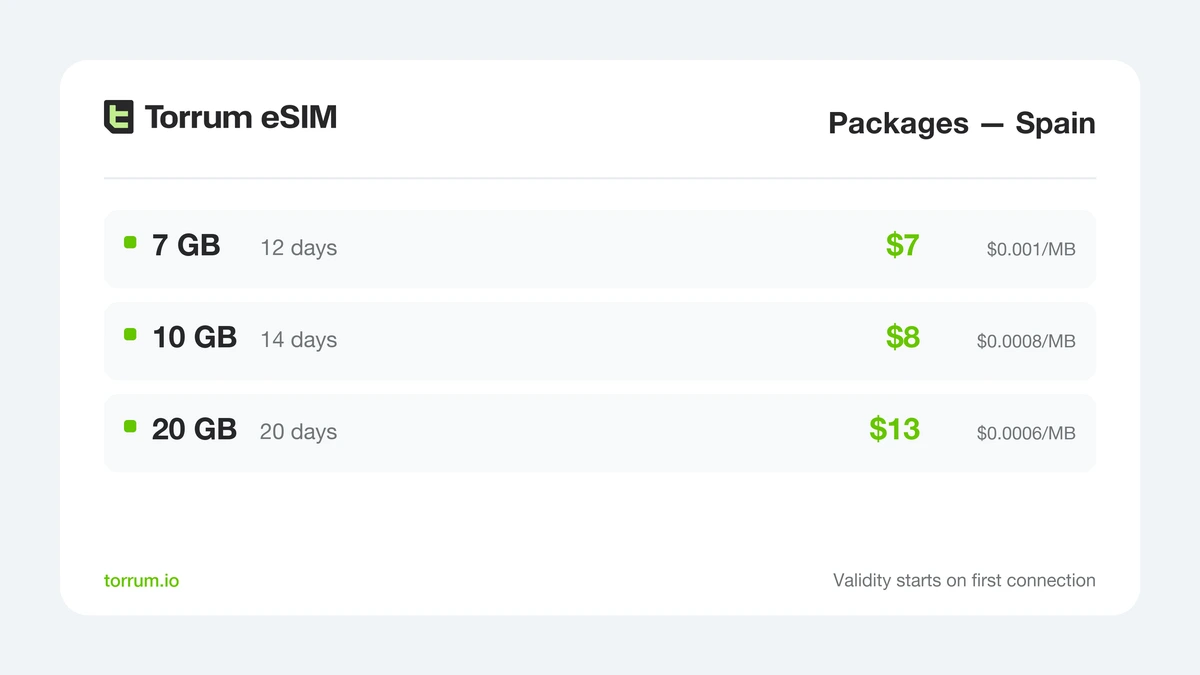
Three package sizes for Spain; the clock starts at the first Spanish connection, not at checkout.
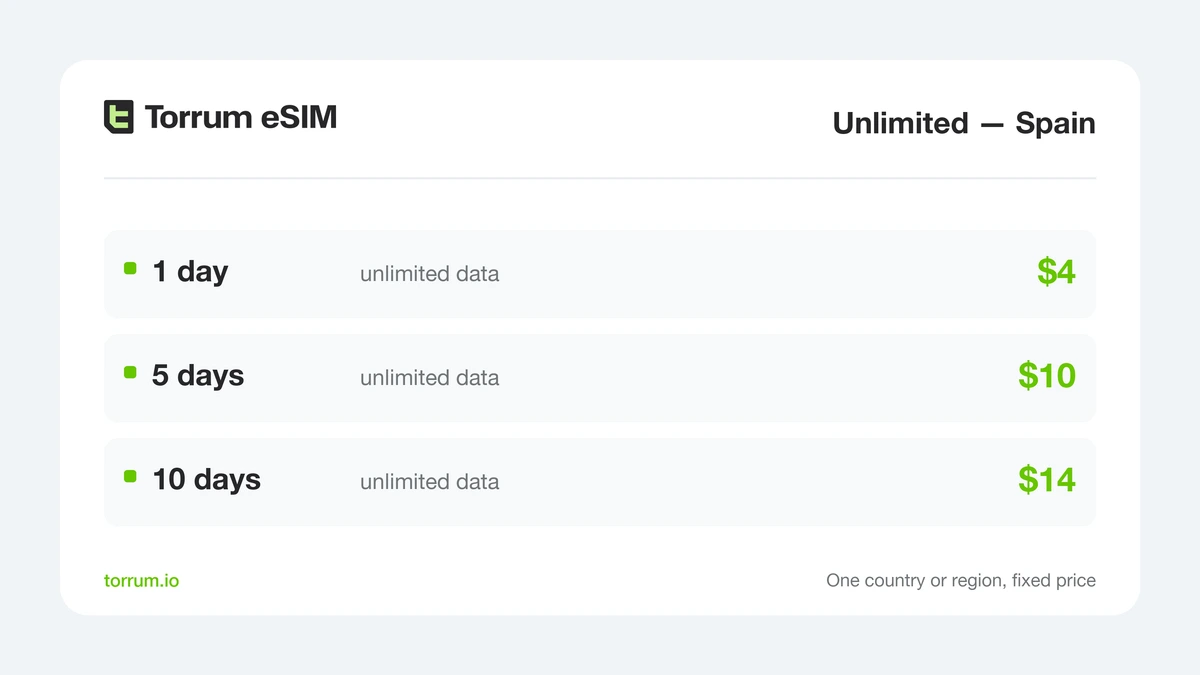
Day-based Unlimited: no counter to watch when the trip is all video calls and uploads.
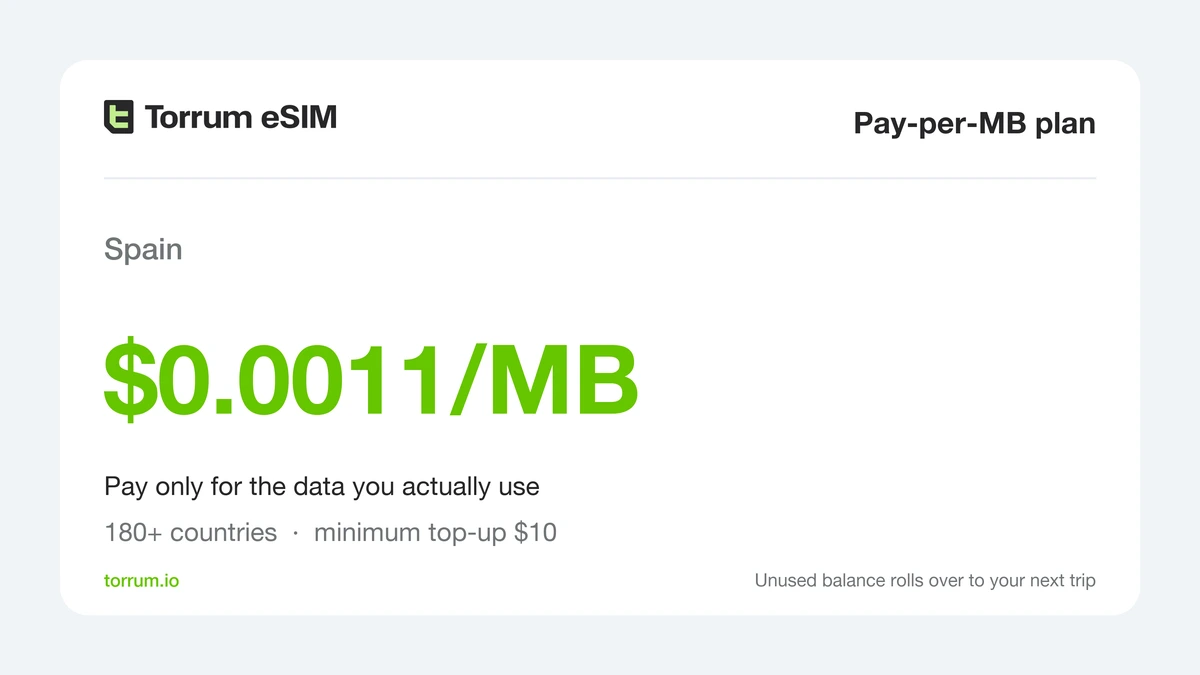
Pay-per-MB: a balance charged by the megabyte, useful when the route crosses borders.
On Pay-per-MB, Spanish data costs $0.0011 per MB from a top-up of $10 or more, and the balance is not tied to one country. Unlimited is sold by the day for one country or region. Not sure how much to buy? See how much data a trip really uses.
Three things not to do in a panic
Do not delete the eSIM. Deleting a profile is not a reset. Apple’s advice is plain: do not erase an eSIM as a troubleshooting step unless your carrier tells you to. A Torrum QR code can be used up to three times, so a reinstall is possible, but each deletion spends one of those few attempts. Ask support first, always.
Do not reset network settings blindly. On iPhone it resets saved Wi-Fi networks and passwords, cellular settings, VPN and APN settings. It is a reasonable last step, after support has seen the problem, not a first one. On Pixel, erasing eSIMs is a separate action from the network reset. On any phone, if a reset screen mentions eSIMs, stop and ask support.
Do not swap home roaming on “just to test”. If the home SIM becomes the data line with roaming on, the test itself may start your carrier’s daily roaming charge.
Messaging support: what to send in the first message

Support can fix a problem faster when the first message already has the details. Write to the Torrum Telegram bot over any Wi-Fi – the airport, a café, the hotel – and include:
- the country and city you are in, and the plan you bought;
- your phone model and its iOS or Android version;
- what the status bar shows next to the travel line: No Service, SOS, bars without data, or bars with a data label;
- which steps from this guide you have already tried;
- the network name if you chose one manually;
- a screenshot of the travel line’s settings screen.
Two things worth doing before the next trip: install the eSIM at home over reliable Wi-Fi and keep the travel line off until you land, following the step-by-step screens, and check that your model is on the supported devices list.
The fix ladder at a glance
| Step | Takes | Fixes | Risk |
|---|---|---|---|
| Read the status bar | 10 seconds | Tells you where to look | None |
| Line on, set as data line | 1 minute | Data going to the wrong SIM | None |
| Data roaming on for travel line | 30 seconds | Bars but no data session | None, if home roaming stays off |
| Airplane mode, then restart | 2 minutes | Phone stuck on an old network | None |
| Manual network selection | 2–3 minutes | SOS or No Service near partner masts | Forgetting to go back to Automatic |
| Check LTE is allowed | 1 minute | Phone stuck on an old network generation | None |
| Check APN, VPN, data limit | 2 minutes | Data label but nothing loads | Wrong APN typed in |
| Reset network settings | 5 minutes | Rare, deep settings faults | Loses saved Wi-Fi; only after support |
FAQ
Why do I have bars but no internet with my travel eSIM?
Usually because Data Roaming is off for the travel line, or because mobile data is still assigned to your home SIM. Fix those two first.
What does SOS mean in the status bar?
On iPhones from the US, Canada and Australia it means no connection to the line’s network, with emergency calls still possible. Try airplane mode, a restart and manual network selection.
Do I have to turn on data roaming for a travel eSIM?
Yes. A travel eSIM always connects through partner networks, so the phone treats it as roaming. Turn roaming on for the eSIM line only.
Will turning on roaming for the eSIM charge me on my home plan?
Not for data: roaming is a setting per line, so keep your home SIM’s data roaming off. Calls and texts on your home number follow your own carrier’s roaming rules.
Should I delete and reinstall the eSIM if it does not connect?
Not as a first step. A Torrum QR code can be used up to three times, so you can reinstall, but each time spends an attempt. Work through the settings steps and contact support before deleting anything.
Does resetting network settings remove my eSIM?
Apple describes the reset as clearing Wi-Fi, cellular, VPN and APN settings. If any screen mentions eSIMs, stop, and reset only after talking to support.
Do I need to enter an APN?
Normally no, the profile sets it. Check it only if data shows as connected but nothing loads, and use the value support gives you.
Why does the eSIM work in one city but not in the next?
Coverage differs between partner networks, and manual network selection can keep you on one that is weak or absent there. Set network selection back to Automatic.
Why do I see LTE instead of 5G abroad?
5G roaming depends on the partner network. Where it is not offered, the phone falls back to LTE, which is normal.
Can I fix the eSIM without any internet?
Most steps here work offline: line, roaming, airplane mode, restart, network selection. Contacting support needs Wi-Fi or any other working connection.
The package has not started yet. Is that a fault?
Not before you land: validity starts with the first connection in the destination. If you have landed and it still has not started, the eSIM has not connected yet, so work through the steps above.
The eSIM worked yesterday and stopped today. Why?
Check whether the package reached its last day or ran out of data, then whether you have crossed into a country it does not cover.
Final thoughts: work down the list, not around it
A travel eSIM that looks dead is often a live one with a switch in the wrong place. Read the status bar, then go in order: line on and set for data, roaming on for that line, airplane mode and restart, manual network, then APN. Stop at the step that works.
The one rule that never changes: do not delete the profile on your own. A message to support with a screenshot is faster than a reinstall.
👉 Planning the next trip? Start with a Spain package, or pick another country on the same page.


 Continue with Google
  Continue with Telegram

